Pinterest for bloggers means using Pinterest’s visual search to send readers to your blog posts, as one traffic channel beside search and your email list. It suits some kinds of blogs far better than others. So this guide starts with our check of 59 real blogs. Then comes a seven-step setup and a rule for your weekly time.
The setup is done once. How long it takes depends on you and your web host. The work after it is weekly: at lease one new vertical pin for each new post, and two numbers to read each month.
Key takeaways:
- In our check of 59 real blogs, 32 showed Pinterest on the page. Every food, gardening, parenting, home and craft blog did. None of the tech, outdoors or personal essay blogs did.
- The newest posts of 53 of those 59 blogs already carried the three tags Pinterest requires for Article Rich Pins. Only 13 of 50 had a vertical 2:3 image in the post itself, and 13 more had an upright image of another shape or size.
- Pinterest’s own advice is “Aim to create original content weekly“, and you can schedule pins up to two weeks ahead.
- Pinterest does not consider listicles as articles, so a list post will not show as an Article Rich Pin.
- Outbound clicks are the Pinterest count that reaches your blog. Set them beside the sessions Google Analytics counts from Pinterest, and let Pinterest’s share of your visits set your weekly time.
My advanced course Build a Blog Empire is for those who have already been blogging for a while and are ready to take their blogging to the next level. Among other things, it teaches how to bring in readers without becoming a slave to Pinterest and pinning all day long.
WHICH BLOGS PINTEREST SUITS: WHAT WE FOUND ON 59 REAL BLOGS
The first thing a blogger needs to decide… “is Pinterest worth it for a blog in my niche?”
Pinterest works best for blogs that give readers something they can picture and save for later. Think of a recipe, a garden bed, a finished room design, a craft or an afternoon activity with the kids.
Here is how we checked. We opened the home page and the newest post on 63 blogs in 15 different niches. In the code we looked for a Pinterest profile link and for Pinterest’s Save button script.
The check shows what bloggers chose to put on the page, not how many readers Pinterest sends them. With 1 to 7 blogs per kind, the table describes this sample, not every blog of that kind.
32 of the 59 blogs showed Pinterest in one of the two ways. 26 linked to a Pinterest profile, and 21 carried the Save button script.
| Kind of blog | Blogs read | Showed Pinterest | Where to start |
| Food | 6 | 6 | Set it up now |
| Gardening | 6 | 6 | Set it up now |
| Parenting and family | 5 | 5 | Set it up now |
| Home and DIY | 3 | 3 | Set it up now |
| Crafts | 2 | 2 | Set it up now |
| Pets | 4 | 3 | Test it for three months |
| Travel | 4 | 2 | Test it for three months |
| Fashion and beauty | 1 | 1 | Test it for three months |
| Photography | 3 | 1 | Basics only |
| Fitness and health | 3 | 1 | Basics only |
| Books | 5 | 1 | Basics only |
| Personal finance | 7 | 1 | Basics only |
| Tech | 4 | 0 | Leave it for later |
| Outdoors | 3 | 0 | Leave it for later |
| Personal essay | 3 | 0 | Leave it for later |
The last column is our rule of thumb, not a Pinterest rule. It follows the count results. The blogs that showed Pinterest: set it up now. Half or more: test it. Fewer than half: basics only. None: leave it for later. Fashion and beauty was difficult to test because we read only one blog. The labels share our check’s limit: they follow what bloggers chose to show, not what Pinterest sent them.
In practice:
- Set it up now: do all seven setup steps below with your first posts, and pin every new post.
- Test it for three months: do the seven steps, pin every new post, then run the two-number check at the end of this guide monthly.
- Basics only: do steps 1 to 3 (account, claimed site, Rich Pin tags), so a pin made from your post shows your title and description. Spend your weekly hours on building search traffic and on your email list.
- Leave it for later: grow your search and email first, and come back if some of your topics change.
The blogs that showed in Pinterest write about things you make, cook, grow, decorate or do with children. The ones that seldom, or never did show, write about technology, money, books, personal essays and the outdoors.
Our reading, which the check did not measure: posts on those subjects mostly answer a question or share a view. There is often no finished result to picture and save for later. Photography and fitness do not fit that reading. Both are subjects you can picture, yet only 1 of 3 blogs of each kind showed in Pinterest.
If your blog niche is not in the table, test your last ten posts. Does each end in something a reader can picture and save for later? If most do, treat your blog like the first group. If most do not, start with the basics only.
If you are still at the stage of deciding what to blog about, my post on kinds of blogs compares the top, most popular kinds of blogs. You can read that post here:
* Kinds of Blogs: Which Type of Blog Should You Start?
f you are planning to start a food blog, you may want to read the following post:
* How to Start a Food Blog: Recipes, Photos and a Plan
f you are planning to start a travel blog, you may want to read the following post:
* How to Start a Travel Blog – A Beginner’s Plan
PINTEREST IS ONE CHANNEL: WHAT IT REQUIRES OF YOU EACH WEEK
Pinterest requires a steady supply of new pins, every week. I found that out for myself.
I used it for a bit… but I found that unless you keep creating new pins and keep pinning, pinning, pinning like a crazy person their algorithm doesn’t show your pins all that often.
Since I have multiple blogs and have far too many other things to do… Pinterest has just never been a top priority for me. That may also have something to do with the fact that none of my blogs are in any of the top niches that Pinterest seems to favor.
In any case, I cannot justify spending so much time focusing on Pinterest in hopes of getting some clicks which may or may not result in a purchase from my website.
Since I earn my living from Affiliate Marketing… I feel my time is better spent creating more SEO content for my blogs that will actually drive search traffic. Writing articles while keeping search intent in mind brings visitors who are ready to buy! ☺️
However, if you are a Pinterest fan, and have a blog in one of the niches that does well on Pinterest, then you should learn all you can as to how to make Pinterest work for you!
Pinteresting Strategies is one of the leading courses for learning how to find success with Pinterest.
Course creator Carly Campbell has been creating her own viral pins and now she will teach you how to do the same.
Get her top 6 rules for creating viral pins, plus 5 free Canva pin templates when you sign up today.
CONSIDER PINTEREST’S OWN ADVICE:
Pinterest’s own advice indicates the same, at a steadier pace. Its help page on Pin performance and distribution says: “Create Pins frequently and consistently to grow your following and increase your reach. Aim to create original content weekly.”
- Schedule ahead: Pinterest lets you schedule Pins up to two weeks in advance. One sitting can fill two weeks.
- New, not repeated: Pinterest asks you not to save the same Pins again and again. If you do, you “may get flagged as spam and get temporarily blocked from creating Pins.”
- Slow to judge: “There’s no set engagement window for Pins.” A pin can gain engagement hours, days, months or even years after it first goes up.
Pinterest is only one channel among several, beside search and your email list. Each decides in its own way who sees your post, so each can rise or fall on its own. All three end in your blog’s own analytics. That is where the time rule at the end of this guide gets its numbers.
Three more lines on that page shape a blogger’s week:
One of the biggest lessons I have learned in my blogging career since 1996 is never depend on only one platform. “Platforms make frequent changes. Google changes. Pinterest changes. NEVER put all of your eggs in one basket.”
For the other ways to bring readers to your blog, read the following post:
* Boost Your Website Traffic
PINTEREST IMAGE SIZES, TITLE AND DESCRIPTION LIMITS:
Pin specs: 2:3 ratio or 1000 X 1500. The words on a pin have their own limits on the same specs page:
- Pin title: up to 100 characters. Depending on the device, only the first 40 may show in people’s feeds, so put the main words first.
- Pin description: up to 800 characters. Descriptions do not show in the home feed or search feed. Pinterest says its algorithm uses them “to determine relevance for delivery”, so write them in the words a reader would search for
HOW TO SETUP PINTEREST FOR YOUR BLOG IN 7 STEPS
1) Create a Business Account or Convert Your Personal One
Create a Pinterest business account, or convert the personal account you already have. A business account adds Pinterest Analytics and the Business Hub. It also lets you run ads, which are the paid part and optional.
To convert, your personal account must be public first. Your Pins and followers stay the same, and you can switch back to a personal account at any time.
To create a new one, use an email address that is not already on a Pinterest account. At this time, Pinterest only lets you create a new business account from a desktop computer.
PRO TIP: Run your business like a business professional… keeping business and personal separate for obvious reasons.
Your friends want selfies and updates on your family and your various activities.
Those who are interested in your business are not necessarily interested in seeing pics of the weekend barbecue with your Aunt Ethel and Uncle Fred. 🙄
2) Claim Your Website
Claim your website so Pinterest ties your blog to your profile. Pinterest’s claim your website page offers four ways: an HTML tag, an HTML file, a DNS TXT record, or Google Merchant Center for some accounts.
Claiming matters for your numbers. Pinterest’s distribution page says: “Without claiming and verifying your website, all content you save will be considered saved content, and will not be highlighted in your Analytics Overview page.”
To claim a site, you must own the domain and be able to edit its source code. As most bloggers will agree… self-hosted WordPress is the Gold standard in blogging. With your own self-hosted site you own your site and all of the content and are able to edit the code as you wish.
With the HTML tag, you paste one line of code into the head section of your site. Then you click Verify in Pinterest. A DNS TXT record can take up to 72 hours to take effect, A website can only be claimed by one Pinterest account.
3) Check Your Posts for the Three Article Rich Pin Tags
Check that your posts carry the three tags Pinterest needs for Article Rich Pins. An Article Rich Pin adds the headline or title, the description and the author from your post to the pin.
Pinterest reads these from hidden lines in your post’s code. They tell other sites a post’s title and description. Pinterest’s developer page on Article Rich Pins lists three of them as required. The table shows those three and two more from the same page:
| Tag | What Pinterest wants in it | Required? |
| og:type | The value “article” or “blog” | Required |
| og:title | The article title | Required |
| og:description | The article description or summary | Required |
| og:site_name | Your site’s name | Optional, “strongly suggested” |
| article:published_time | The date the post went up | In Pinterest’s example only, not in its required list |
These tags are called Open Graph tags. Pinterest also reads the same details from Schema.org tags.
Most blogs already have them. In our check, 53 of the 59 newest posts carried all three required tags. SEO plugins print them for you: Yoast SEO, for one, writes og:type, og:title and og:description into a post’s code.
Three details from Pinterest’s Rich Pins help page and developer pages change what you can expect:
- List posts are left out. Pinterest does not consider listicles or pages with mostly images and little text to be articles.
- A recipe beats an article. When a page carries tags for more than one kind of Rich Pin, Pinterest shows them in this order: product, recipe, article. So a recipe post with recipe markup shows as a Recipe Pin.
- Changes take a day. Content can take up to 24 hours to sync. When you edit your post, the Rich Pin updates by itself. If you edit the pin by hand on Pinterest, your edit overwrites what came from your site.
With the tags in place, the help page says: “All content from pages that have the correct meta tags will appear as rich Pins when you create a new Pin. Existing Pins that link back to pages with rich meta tags will now appear as Rich Pins.”
To check one post’s tags, paste its address into Pinterest’s validator on its developer site.
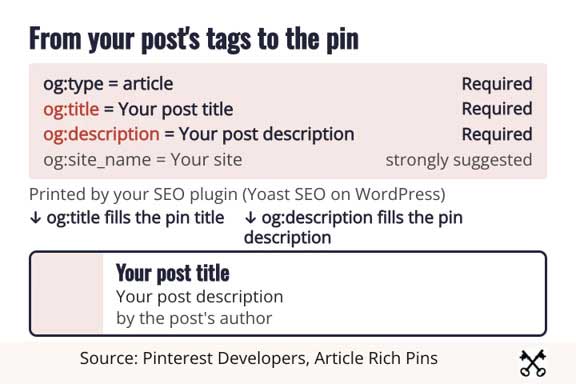
* Article Rich Pins read the same title and description tags your SEO plugin writes.
For writing titles and descriptions that work in search, read the following post:
* SEO for Bloggers: A Beginner’s Guide to Search
4) Decide Where Pinterest’s Save Button Goes
Decide whether you want Pinterest’s own Save button on your images, and where. In our check, 21 of the 59 blogs loaded its script.
Pinterest’s developer page for the Save button sets two rules for that script.
First: include it “once per page, no matter how many buttons or widgets you use.”
Second: “Don’t include our script tag on pages that don’t have Pinterest add-ons, even if it seems convenient to stick the tag in your global footer template.”
So, add it only to posts where readers will want to save an image. If your share buttons already include Pinterest, you may not need Pinterest’s script at all.
5) Create Boards Named After Your Blog’s Topics
Create a board for each main topic of your blog. Pinterest describes boards as “collections for your Pins”.
Name each board the way a reader would search for that topic, not with a clever phrase.
6) Pin Each New Post With Its Own Vertical Image
Pin each new post with its own 1000 x 1500 image, a title and a description. Link the pin straight to that post, never to your home page.
Add the link when you create the pin. Pinterest counts outbound clicks only from the date the link is added.
Make a new pin for a new post, or a new image for an older post. Never save the same pin again. Use the scheduler to set up two weeks of pins in one sitting.
7) Plan Seasonal Posts Early With Pinterest Trends
Plan seasonal posts with Pinterest Trends, so your pins are up before people start searching. Trends shows up to the last two years of search, save and shopping trends, by region. It also shows when people start searching for a keyword.
A business account also shows the top trends among your own engaged audience and followers. That view covers the past 90 days and is updated daily. Pinterest says this view appears only after your audience is large enough.
Publish and pin each seasonal post before the rise starts, not at its peak.
Before you pin: a 7-point check:
- Business account set up, and your website claimed under one Pinterest account.
- og:type, og:title and og:description on your posts.
- List posts: no Article Rich Pin expected, so the pin image and title carry the whole job.
- One vertical 1000 x 1500 image per post.
- The main words in the first 40 characters of the pin title.
- The pin linked to the post itself, with the link added when you create the pin.
- Pinterest’s Save script once per page, on posts that use it.
Reading Pinterest Analytics: The One Count That Reaches Your Blog
Outbound clicks are the one count in Pinterest Analytics that reaches your blog. They, and the outbound click rate built on them, count people sent off Pinterest. A big impressions number is good news on Pinterest, but they become readers only through outbound clicks.
On a computer, log in to your business account and click the menu icon at the top left. Then choose Overview under Analytics. In the app, tap your profile picture, then the chart icon, then Analytics. The Overview shows your top pins, top boards and main numbers from the last 30 days.
Here is what each main number means, in Pinterest’s own definitions, and what it tells you as a blogger.
| Metric | Pinterest’s definition | What it tells you as a blogger |
| Impressions | “The number of times your Pins or ads were on screen.” | How often Pinterest showed your pins |
| Saves | “The number of times people saved your Pin to a board.” | Whether people want to keep the idea for later |
| Pin clicks | “The total number of clicks on your Pin or ad so it opens in closeup.” | Whether the image made people look closer, still on Pinterest |
| Outbound clicks | “The number of times people perform actions that lead them to a destination off Pinterest.” | How often a pin sent someone toward your blog |
| Engagement rate | Engagements (saves, Pin clicks and outbound clicks) divided by the times your Pins were seen | How a pin does compared with how often it was shown |
| Total audience | “The total number of people who have seen or engaged with your Pins.” | How many different people you reached |
Three details on the same help page change how you read the Overview:
- The newest 48 hours are estimates. Pinterest marks real-time numbers as estimates that “might decrease”. Judge a week once it is at least two days old.
- Clicks count from the day the link is added. Pinterest notes that “Outbound clicks are measured starting from the date the link is added.” A pin you link later starts counting then.
- Other people’s pins of your posts. With a claimed website, the Source filter offers Other Pins: pins that other people created or saved from your blog.
You can pick date ranges going back a year and a half and export them as a CSV file.
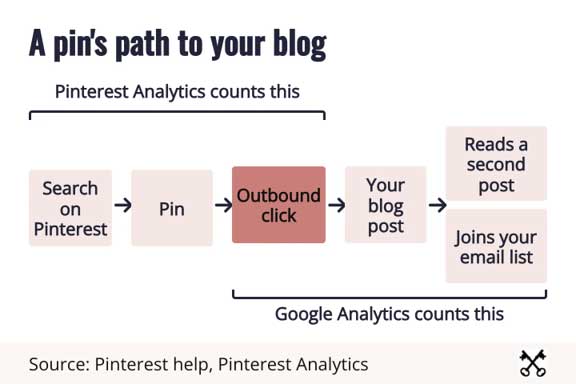
Pinterest’s count ends at the outbound click. Everything after it happens on your blog.
FIND THE SAME VISITS IN GOOGLE ANALYTICS
Pinterest Analytics stops counting at the outbound click. Your blog’s own analytics starts counting at the visit. Google Analytics calls a visit a session.
These steps follow Google’s help page on the Traffic acquisition report:
- Sign in to Google Analytics and select Reports in the left menu.
- Select Acquisition, then Traffic acquisition.
- Set the date range to the same days you used in Pinterest.
- In the dimension drop-down at the top of the table’s first column, choose Session source / medium. The report opens on the default channel group, which sorts visits into groups such as “Organic Social”, not by site.
- Type pinterest in the search bar above the table and press Enter, then add up the sessions in the rows that appear.
Google’s own example of that search is “google / organic”, the source / medium row for visits from Google Search. Its page does not say what Pinterest’s row is called, so let the search bar show you.
Do not expect the two numbers to match. Pinterest counts a click on Pinterest; Google Analytics counts a session that starts on your blog. A reader who clicks a pin and leaves before your page loads is a click and not a session. That is our reading of the two definitions, not a figure from either company.
Read the two numbers side by side, for the same days, every month, with this worksheet:
| Line | Where you find it | Your number |
| A. Outbound clicks | Pinterest Analytics, Overview, your chosen days | |
| B. Sessions from Pinterest | Google Analytics, Traffic acquisition, Session source / medium, search “pinterest”, same days | |
| C. All sessions | Google Analytics, Traffic acquisition, the total for the same days | |
| D. Hours spent on Pinterest | Your own calendar for the same days | |
| B ÷ A: sessions per click | How many clicks arrived as a counted visit | |
| B ÷ C: Pinterest’s share of your visits | How much of your blog’s traffic Pinterest brings | |
| B ÷ D: visits per hour | What one hour of Pinterest work brought |
Work out the same last line for search and for your email list, in your own hours.
YOUR PINTEREST TIME BUDGET: A RULE FROM YOUR OWN TWO NUMBERS
Let Pinterest’s share of your visits (line B ÷ C) set your weekly time. Let sessions per click (B ÷ A) tell you what to fix first. Visits per hour (B ÷ D) is a second, separate check: it decides where any hour beyond the rule goes. Here is the worksheet filled in once.
This is an example with round numbers. These are not my numbers, and they are not a benchmark.
| Line | Example | Working |
| A. Outbound clicks, 28 days | 400 | From Pinterest Analytics |
| B. Sessions from Pinterest, same 28 days | 240 | From Google Analytics |
| C. All sessions, same 28 days | 4,000 | From Google Analytics |
| D. Hours on Pinterest | 8 | 2 hours a week for 4 weeks |
| Sessions per click | 0.6 | 240 ÷ 400: six in ten clicks arrived as a counted visit |
| Pinterest’s share of visits | 6% | 240 ÷ 4,000 |
| Visits per hour | 30 | 240 ÷ 8 |
Now set the share against the rule. It is our rule of thumb, not a Pinterest rule and not a benchmark. It counts time in slots. One slot is one 2-hour sitting a week, enough to make and schedule the week’s pins. Read the rule after three months of the worksheet, because a pin can take months to find its readers.
| What your numbers show | What to do with your weekly time |
| Pinterest brings under 5% of your visits, flat for three months | Less than a slot: about 30 minutes a week, one vertical pin per new post. Leave the claim and Rich Pin tags in place. |
| Pinterest brings 5% to 15% of your visits | One slot, about 2 hours a week: one new pin per new post, plus one new pin for an older post each week. |
| Pinterest brings over 15% of your visits, and the share is rising | Two slots, about 4 hours a week. Readers already arrive this way, so feed what works. |
| Many clicks, few sessions (sessions per click well under half) | Before you make more pins, open your pins and check that each links to the right post and that the post loads well on a phone. |
| Few clicks after three months of weekly pins | Read impressions and saves. If pins are seen and saved but not clicked, change the pin images and titles. If they are not seen, Pinterest is not doing the job for this blog yet. |
The second check is visits per hour, and it decides only where a spare hour goes. The example blog gets 30 visits for each hour of Pinterest work. If an hour of writing for search brings it more than 30 visits, the spare hour goes to search. If fewer, it goes to Pinterest.
Moving hours between channels as the blog grows is the work of a blog that is already running. My advanced course Build a Blog Empire is for bloggers at that stage who are ready to take their blogging to the next level. It includes my beginner course Blogging Step-by-Step, plus 6 months in the Coaching Community and lifetime course access.
Fill in the worksheet on the first of every month, for the 28 days before. Three filled-in months give you the trend the rule needs.

About the Author: Sherry Bennett
Ms. Bennett is a Professional Blogger, who has been earning a living online with niche websites since October 1996.
Through hard work and dedication, she has turned her passion for blogging into a 7-figure business.. and you can do the same.
Read More
Have more questions? Need some answers?
Find me on Facebook:
Business Page: The Blogging Queen
Facebook Group: 7-Figure Professional Blogger – Sherry Bennett